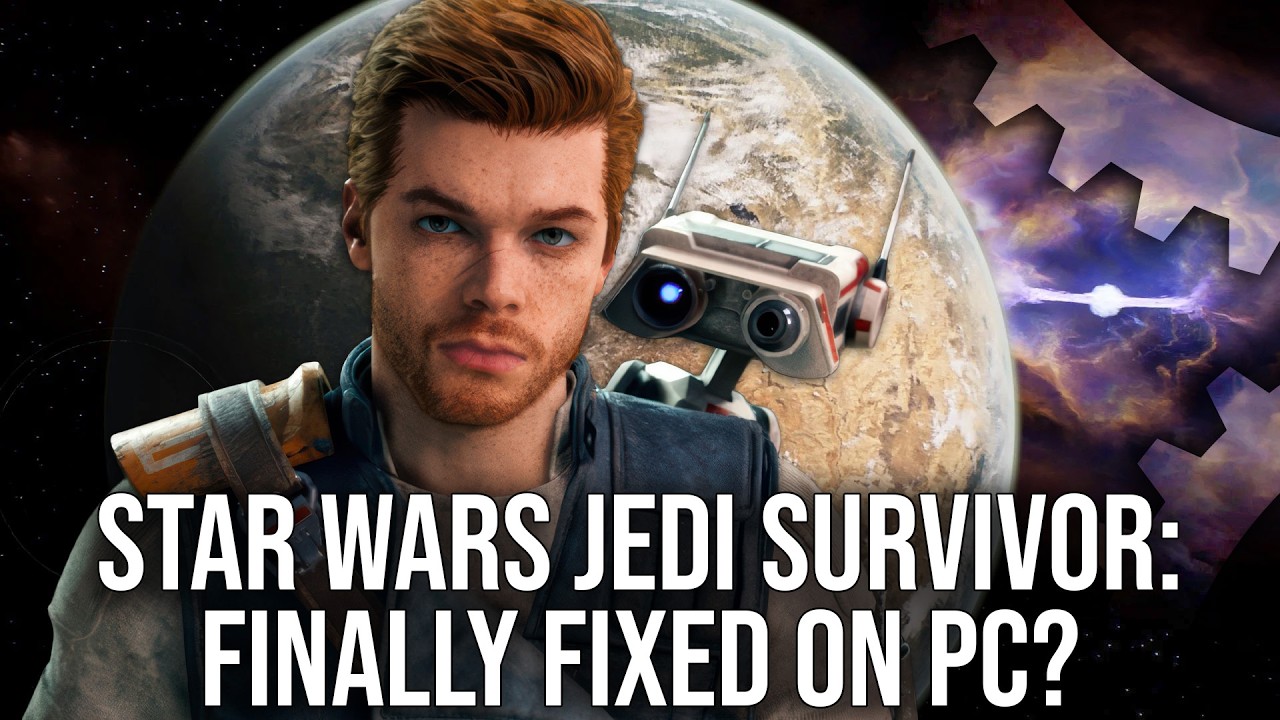
For years, Star Wars Jedi: Survivor has been a legend for the wrong reasons. It remains a fantastic action-adventure title from Respawn Entertainment. However, the PC port was plagued by egregious performance problems at launch. Even after multiple patches, a specific “issue” persisted for gamers. Many players noticed a strange stuttering during movement. This occurred even when the frame rate appeared perfectly stable. Digital Foundry’s Alex Battalia has finally uncovered a potential solution hidden within the game’s own code.
The Mystery of the “Perfect” Frame Rate Stutter
The issue in Jedi: Survivor is quite unique and frustrating. You can have a perfectly locked 60 FPS. Your frame time graph might look like a flat line. Yet, as you run through open levels like Koboh, the game still feels jittery.
This happens because the camera and character animations skip frames. The game thread fails to sync correctly with the rendering process. To the naked eye, the camera speeds up and stops randomly. This makes the experience feel much less fluid than the numbers suggest. This issue is most visible on low-persistence displays like OLEDs. On these screens, every small skip is magnified.
Finding the Hidden Respawn Command
Alex Battalia stumbled upon the fix while researching DLSS 4.5. He used the “Unreal Engine Unlocker” tool by Frans Bouma. This tool allows users to dump all console commands from the game’s executable file. Among the thousands of lines, he found a custom command created by Respawn.
The command is: respawn.Rendering.
By default, this value is set to zero. The internal description reads: “Enable interpolated rendering, two render frames per game thread frame.” This suggests that the engine can generate two visual frames for every single game thread update. Digital Foundry suspects Respawn uses this on consoles for the 60 FPS mode. However, for reasons unknown, it was never enabled or exposed as an option for PC users.
How the Interpolation Fix Works
This setting eases the processing burden on the game thread. It essentially halves the workload required for each frame. This does not lead to a linear doubling of performance. Other factors like the render thread or tertiary tasks still limit the CPU. However, the gains are significant for those with mid-range hardware.
On a Ryzen 5 3600, Digital Foundry saw a 20% increase in CPU-limited performance. An average of 70 FPS in Koboh Town jumped to 84 FPS. On higher-end chips like the Ryzen 7 9800X3D, the gain was a more modest 13%.
The real magic is in the “smoothing” effect. The GPU now renders frames with interpolated camera positions. The distance traveled by the camera between each frame becomes consistent. On the left side of a split-screen test, motion looks random and juttery. On the right side with the fix enabled, the motion becomes silky smooth.
Nothing in PC gaming comes for free. Interpolation introduces a small amount of input latency. Since the game is “predicting” or filling in frames, there is a delay in your raw input.
- Ryzen 5 3600: Average latency increased by 18 milliseconds.
- Ryzen 7 9800X3D: Average latency increased by only 7 milliseconds.
If you use a 60 FPS cap with V-Sync, the delay can grow to 30 milliseconds. For a competitive shooter, this would be a deal-breaker. For a single-player game like Jedi: Survivor, most players will find it a worthy trade-off.
There is also a warning for owners of 8 GB GPUs. Alex tested the fix on an RTX 4060. The experience was actually worse. The limited VRAM and PCIe lanes caused massive stuttering. The fix seems to require at least 12 GB of VRAM to function correctly. This is likely why Respawn did not make it a default setting in the menu.
How to Enable the Fix on Your PC
If you want to try this yourself, you cannot simply edit an .ini file. Currently, the most reliable method is using the Unreal Engine Unlocker (UEU).
- Download and run the Unreal Engine Unlocker.
- Inject the tool into the Jedi: Survivor process while the game is running.
- Open the in-game console (usually the tilde
~key). - Type
respawn.Rendering 1and press Enter.
You should notice an immediate change in camera fluidity. Walk around a busy area like the Rambler’s Reach Outpost to see the difference.
What This Fix Doesn’t Solve
While this is a massive win for animation fluidity, it is not a total cure. Jedi: Survivor still suffers from fundamental engine issues. This command will not fix the infamous shader compilation stutters. Those stutters occur when the game loads new assets or effects for the first time. It also won’t stop the game from crashing on Jedha when Ray Tracing is active.
Furthermore, it does not fix the poor PC menu design. It simply addresses the specific “camera jutter” that has annoyed fans since 2023. Digital Foundry notes that the 30 FPS console version remains the most “consistent” way to play. However, for PC players, this hidden command is the closest they will get to a perfect experience.
Final Thoughts on Respawn’s Decision
It is rare to find a “magic button” hidden in game code. Respawn likely kept this hidden to avoid tech support nightmares. Explaining interpolation and latency to a general audience is difficult. It is a setting that shines on some rigs but fails on others.
However, for the gaming community, this discovery is vital. It proves that the community often finds ways to polish games long after the developers have moved on. If you have the CPU overhead and a decent GPU, this fix is highly recommended. It transforms the game from a stuttering mess into the smooth epic it was meant to be.
If you played Star Wars Jedi: Survivor on PC, did you experience these issues? Have your tried this fix? If so, what were the results for you? Leave your thoughts in the comments section below.
No Comments yet!